
Starting out
The Feldy mobile app is the field team’s starting point for accessing projects, capturing jobsite information, reviewing measurement reports, and launching AI workflows. Because Feldy adapts to the trades your organization selected during signup, the tools shown on the Home screen may differ between organizations. This guide uses a roofing organization as the example. Roofing organizations receive the full Feldy project workflow along with access to roof measurements and 3D property models.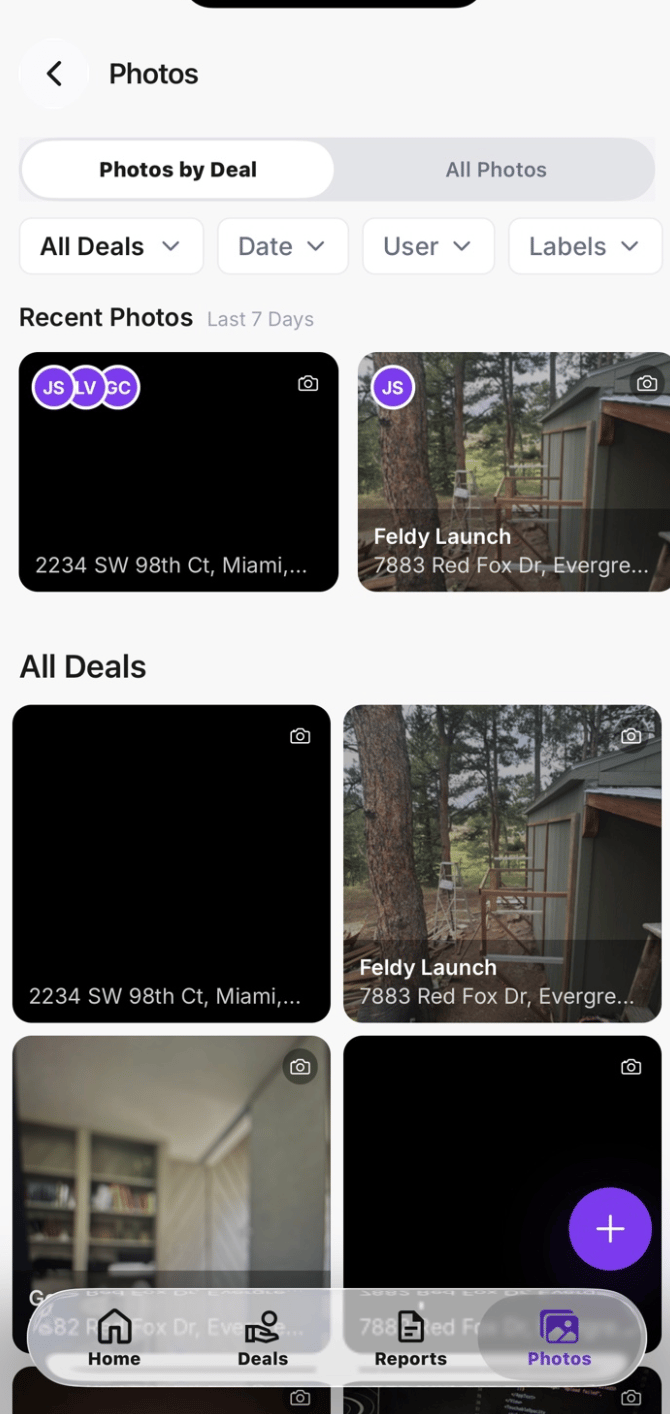
The Home screen
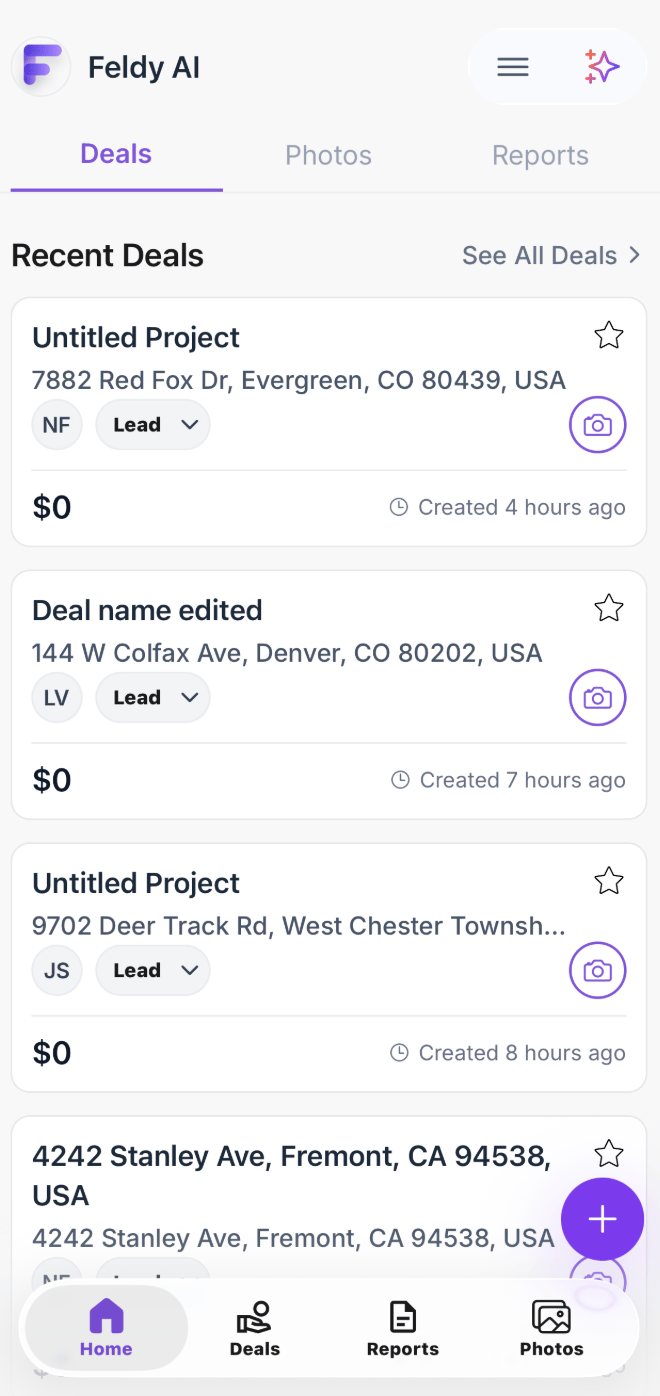
After signing in, Feldy opens to the Home screen. From here, you can access the three main types of information that drive work inside Feldy:- Projects
- Photos
- Reports
Terminology: Some versions of the Feldy app currently display Deals. This area is being renamed Projects. Both names refer to the same project workspace.
Projects
Projects are the foundation of Feldy. Each project represents work associated with a specific property or location. Everything captured, generated, or ordered for that job is organized inside the project. A project can contain:- Property and customer information
- Jobsite photos and videos
- Notes and comments
- AI job walkthroughs
- Roof or exterior scans
- Measurement reports
- 3D property models
- Estimates and pricing options
- Proposals and documents
- Assigned team members
- Project-stage information
Recent projects
The Home screen shows the projects your team has recently created or accessed. Each project card may include:- Project name
- Property address
- Assigned team member
- Current project stage
- Estimated project value
- Creation time
- Favorite status
- A camera shortcut
Project stages
The stage shown on a project card indicates where the opportunity currently sits in your organization’s workflow. For example, a newly created project may begin in the Lead stage. Select the stage dropdown to move the project forward as work progresses. The stages available depend on how your organization has configured its project pipeline.Favorite a project
Select the star icon to mark a project as a favorite. Favorites are useful for projects that are active, high priority, or frequently accessed.Capture photos from a project
Select the camera icon on a project card to begin taking photos for that property. Photos captured from this shortcut are automatically added to the correct project.Photos
The Photos area contains jobsite images captured across your organization. Rather than opening projects individually, your team can use this area to browse, filter, and review captured photos from one place. Select Photos from the top or bottom navigation.Photos by project
The Photos by Project view groups jobsite images according to the project they belong to. Each project card may show:- A recent project image
- Project name
- Property address
- Team members who contributed photos
- A shortcut for capturing additional photos
All photos
Select All Photos to browse individual images across every project you can access. Use this view when you need to find a particular image without first opening its associated project.Filter photos
You can filter the photo library by:- Project
- Date
- User
- Label
- From a specific property
- Captured during a certain period
- Taken by a particular team member
- Assigned a specific label
Reports
The Reports area is available to organizations with Feldy measurement and 3D scanning features enabled. For a roofing organization, this is where your team can view and manage roof measurement-report orders. Reports may include:- Roof diagrams
- Roof areas and pitches
- Edge measurements
- Facet and plane information
- Penetrations and roof features
- Supporting property imagery
- A connected 3D model
Report statuses
Use the tabs near the top of the Reports screen to filter requests by status:- All
- Submitted
- Pending
- Completed
- Project name
- Property address
- Report type
- Current status
- Person who requested it
- Date requested
- Date completed
View a report
Select View Report to open the generated measurement report. The report becomes available once processing is complete. Submitted or pending reports may not yet contain final measurement information.View the 3D model
Select View 3D to open the property model connected to the report. The 3D viewer allows your team to inspect the reconstructed property and understand the surfaces used to produce the measurements. The type of model and information available depend on the report ordered.Go to the project
Select Go to Project to open the project associated with the report. From there, you can access the jobsite photos, customer information, estimates, proposals, and other documentation for the property.Trade-specific availability
The Reports area depends on the features enabled for your organization.Roofing organizations
Roofing organizations can order roof measurement reports and access the associated property models.Exterior organizations
Exterior organizations may receive access to supported exterior measurement reports and 3D exterior models.Interior trades
Painting, flooring, remodeling, and other interior trades use Feldy’s project, photo, walkthrough, estimating, and proposal workflows. Interior 3D scans and measurement reports are planned but are not currently available.Quick actions
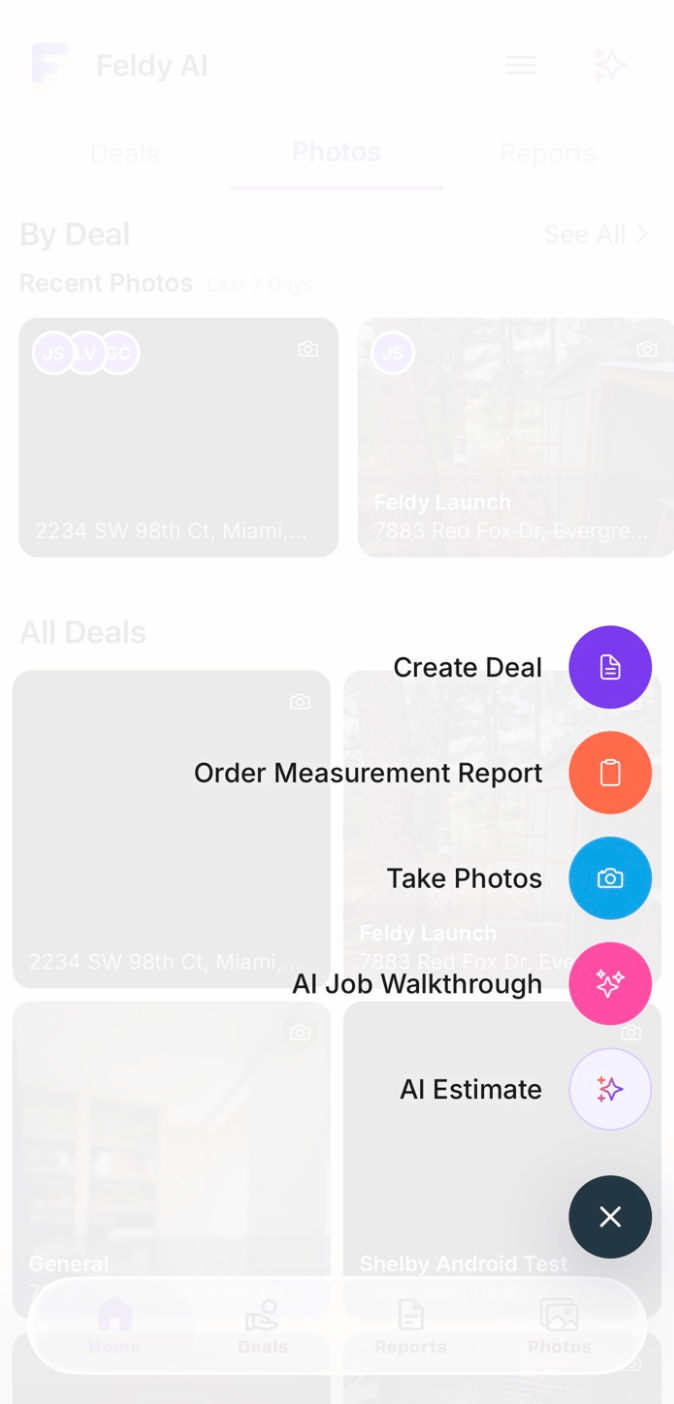
Select the purple plus button to open the Quick Actions menu. Quick Actions allow you to start common field workflows from almost anywhere in the app. The available actions depend on your organization’s trades and enabled features.Create Project
Select Create Project to begin work for a new property. You will:- Choose Residential or Commercial.
- Search for the property address.
- Enable any available trade-specific features.
- Optionally add customer information.
- Optionally add project information.
Order Measurement Report
Roofing and exterior organizations receive the additional Order Measurement Report action. Use this option to start a new measurement order without first navigating to the Reports area. You will select or create the associated project, choose the report type, provide the required property information, and submit the order. Organizations without measurement access will not see this action.Take Photos
Select Take Photos to open the Feldy camera and begin documenting a jobsite. Choose the project the photos belong to, then capture the areas relevant to the work. The photos are uploaded to the project and can later be used for:- Jobsite documentation
- AI estimates
- AI job walkthroughs
- Measurement requests
- Internal review
- Customer-facing documents
AI Job Walkthrough
Select AI Job Walkthrough to document a property using photos, video, and spoken or written observations. The walkthrough helps Feldy organize what was observed at the jobsite and what work is being considered. It can become a source for estimates, scopes of work, and other project documentation.AI Estimate
Select AI Estimate to begin generating an estimate with Feldy’s AI Estimate agent. You can describe the requested work and choose project sources such as:- Photos
- Documents
- Job walkthroughs
- Measurement reports
Feldy AI
Select the AI icon in the upper-right corner to open Feldy’s assistant. The assistant provides a conversational way to work with project information and start supported AI workflows. Depending on the available context, you can use it to:- Ask questions about a project
- Create an estimate
- Summarize captured information
- Produce project documentation
- Find relevant project details
- Begin another supported workflow
Mobile and web work together
The mobile application is designed primarily for capturing and accessing information in the field. The Feldy web application provides additional space for office workflows such as:- Reviewing projects
- Managing users and settings
- Configuring pricing
- Building templates
- Editing estimates
- Preparing proposals
- Reviewing reports and 3D models
- Coordinating work across the organization