> ## Documentation Index
> Fetch the complete documentation index at: https://docs.feldy.ai/llms.txt
> Use this file to discover all available pages before exploring further.
# projects in the Feldy App
Projects are the central workspace for organizing customer information, jobsite capture, estimates, measurements, reports, documents, and other work in Feldy.
A project created in the Field App is automatically synchronized with the Feldy web platform. The same is true in reverse: projects created or updated on the web appear in the Field App.
> **Terminology update:** The current Field App may still use the word **Deal** in some places. This will be renamed **Project**. Both terms currently refer to the same workspace.
 ## Create a project
To create a project from the Field App:
1. Open the Feldy home screen.
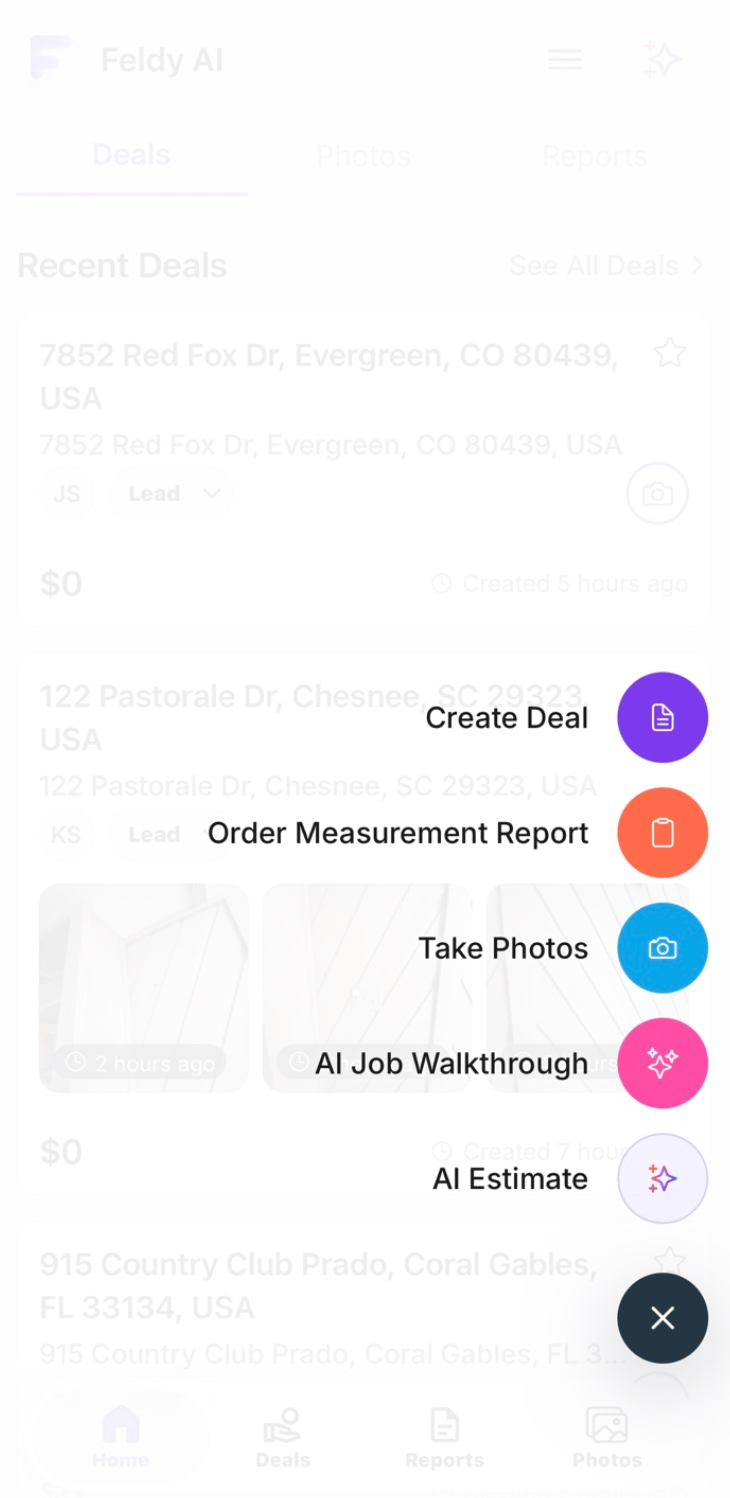
2. Select the purple **plus** button in the lower-right corner.
3. Select **Create Deal** or **Create Project** from the actions menu.
4. Find and confirm the property.
5. Choose the project type.
6. Enable the relevant trade features.
7. Add optional customer and project information.
8. Select **Create project**.
The new project becomes available immediately in both the mobile and web applications.
## Open the actions menu
The purple **plus** button appears in the lower-right corner of the Field App.
Selecting it opens common actions such as:
* Create a project
* Order a measurement report
* Take photos
* Start an AI Job Walkthrough
* Create an AI estimate
The available actions may vary based on the organization’s enabled products and trade configuration.
Select **Create Deal** or **Create Project** to begin creating a new project.
## Find the property
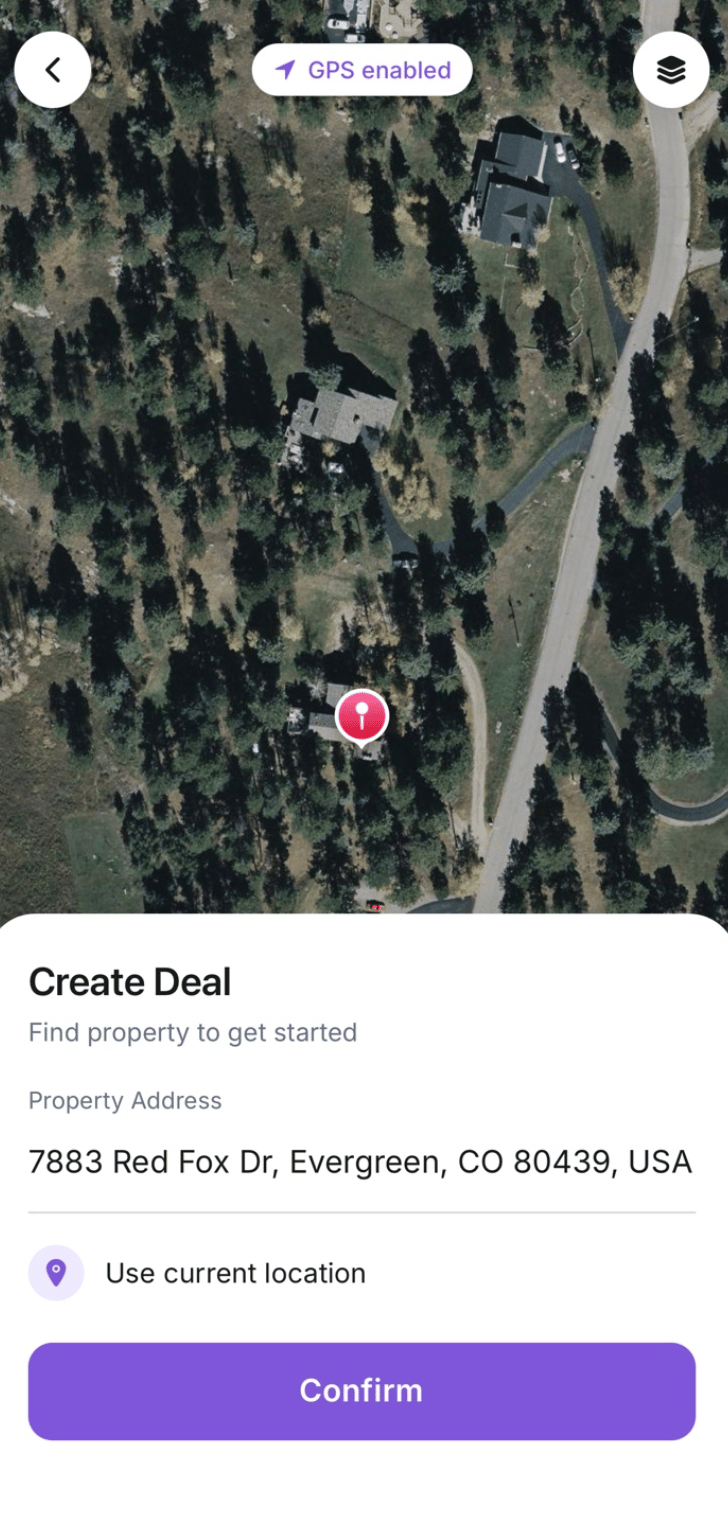
Feldy opens a map to help identify the project location.
You can:
* Search for the property address
* Use the device’s current location
* Move the map to adjust the property pin
* Change the map layer when needed
Before continuing, confirm that the pin identifies the correct structure.
This is especially important for:
* Properties with long driveways
* Multiple buildings
* Rural properties
* Apartment complexes
* New construction
* Commercial sites
* Addresses shared by multiple structures
Select **Confirm** after the correct property has been identified.
## Confirm the project details
After selecting the property, review the project information.
The creation form can include:
* Property address
* Project type
* Enabled trade features
* Customer information
* Project information
### Project type
Choose:
* **Residential**
* **Commercial**
The selected project type can influence the workflows, report options, and trade-specific features available inside the project.
### Enable features
Choose the trade or service features that should be available for the project.
For example:
* Roofing
* Exteriors
* Interior work
* General field services
The available choices depend on the organization’s configuration.
Selecting a trade can add specialized tools to the project after it is created.
## Add customer information
Customer information is optional during initial project creation.
You may add details such as:
* Customer name
* Email address
* Phone number
* Company
* Billing information
Customer information can also be added or updated later.
## Add project information
Project information is also optional.
Depending on the organization, this can include:
* Project name
* Project stage
* Project owner
* Estimated value
* Internal notes
* Service type
* Assigned team members
You can create the project quickly and complete these details later from mobile or web.
## Create the project
After reviewing the property and selected features, select **Create project**.
The project is added to the organization and becomes available to other authorized users.
It can then be opened from:
* Recent Projects
* All Projects
* Search
* The Feldy web platform
# Quick actions after creating a project
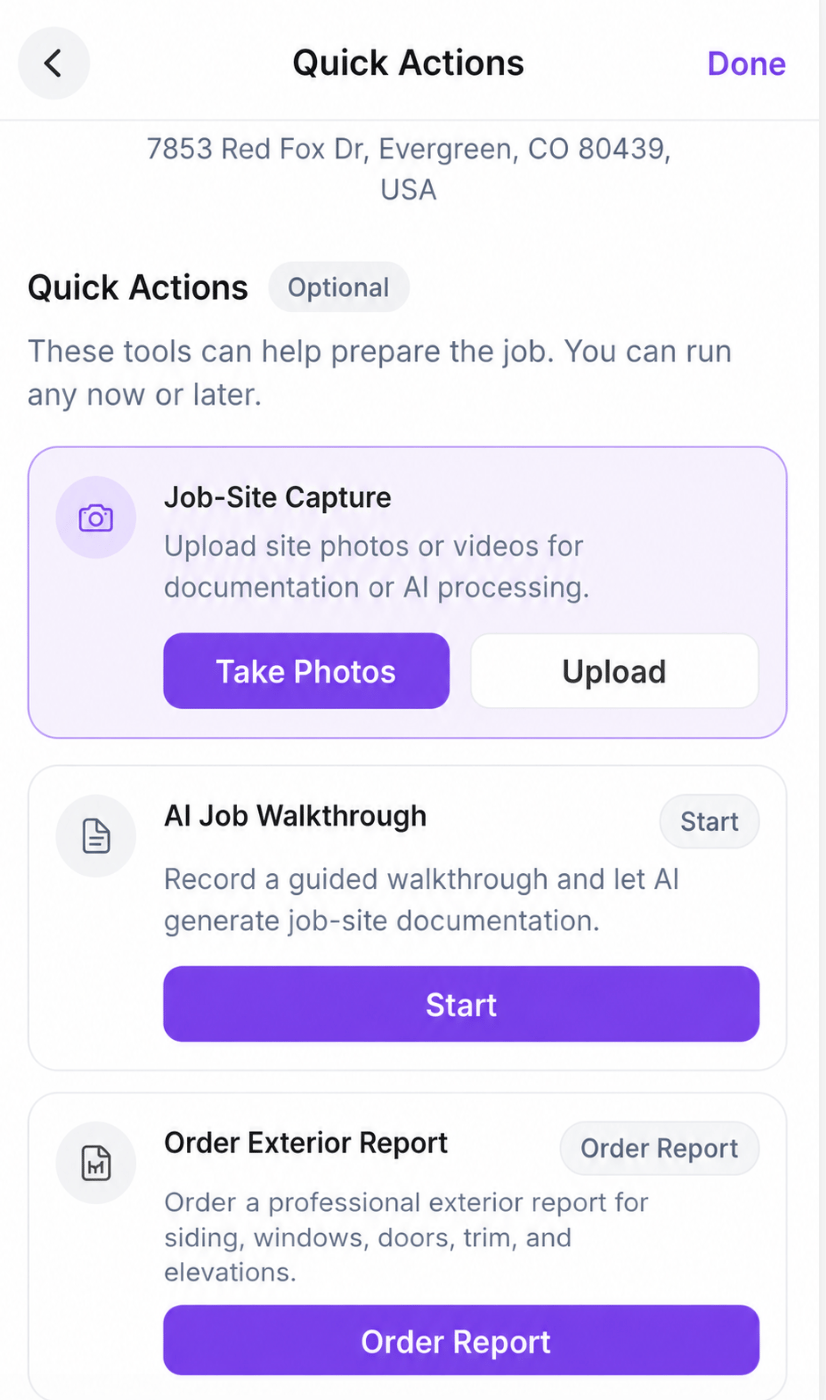
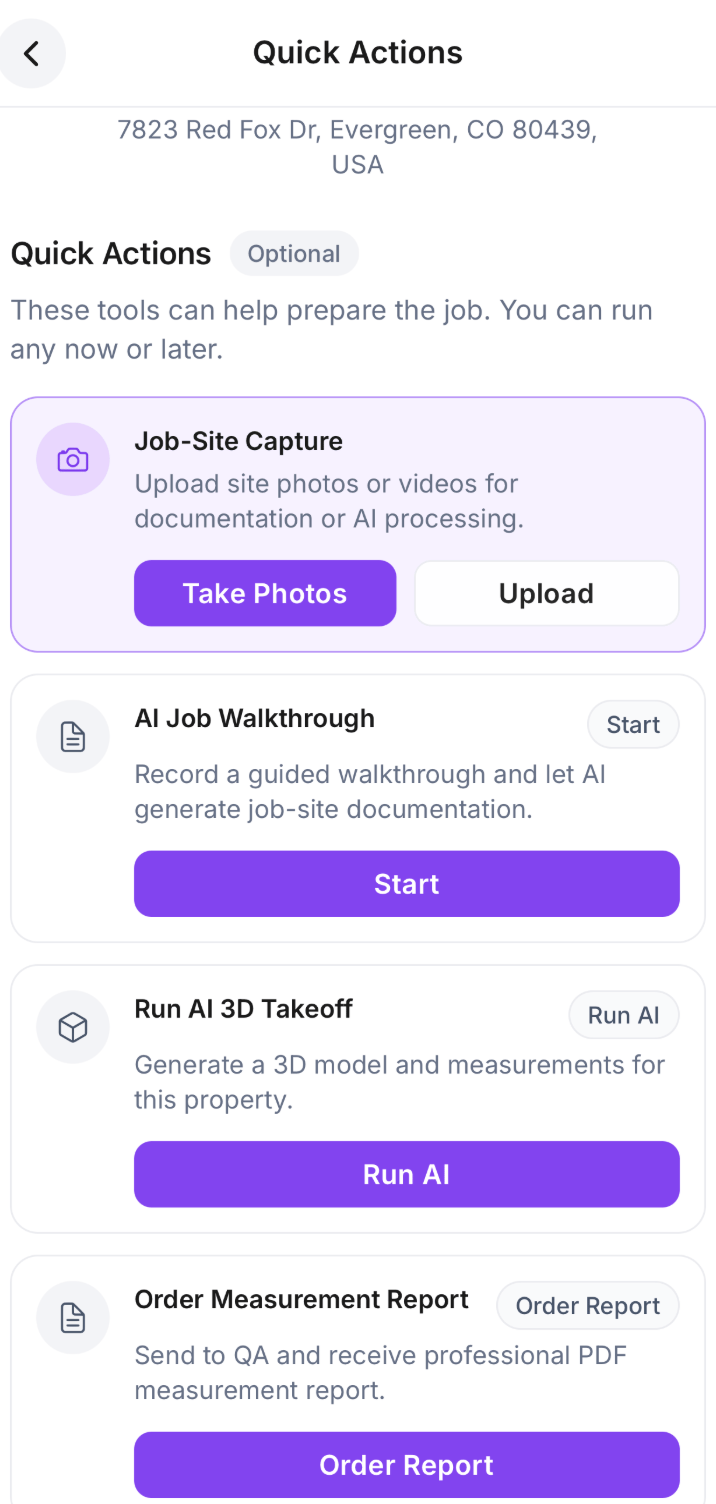
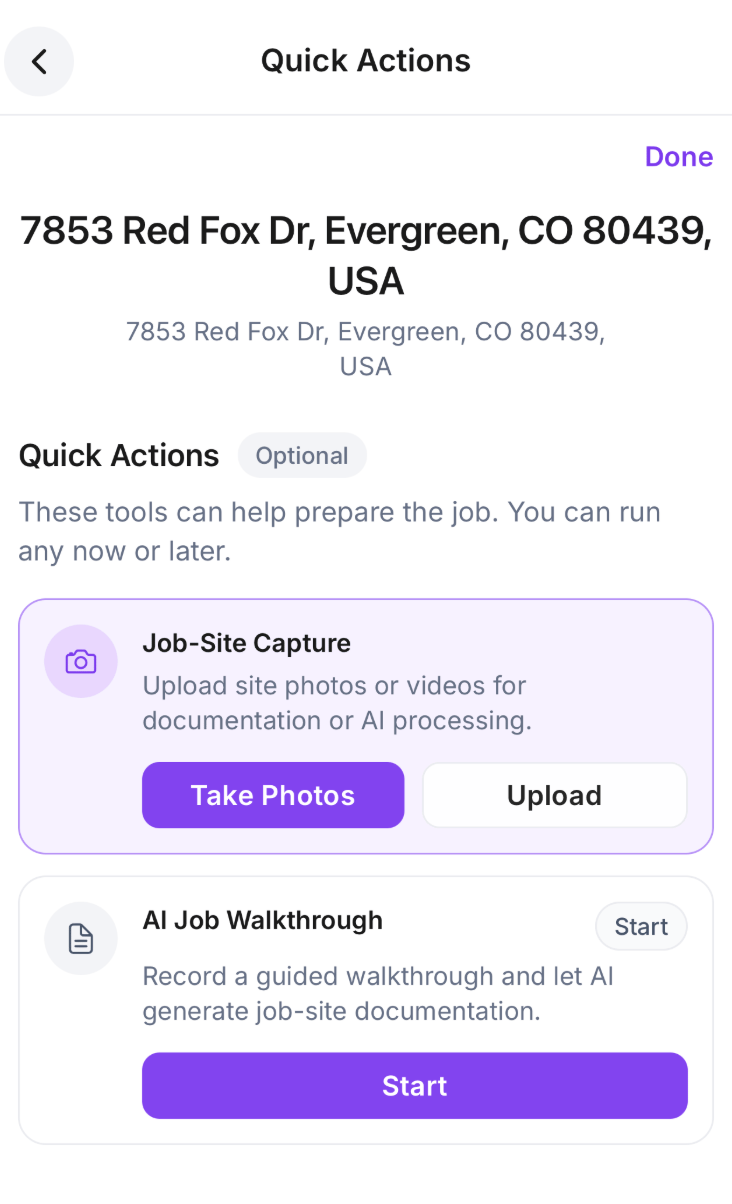
After project creation, Feldy may display optional quick actions that help prepare the job.
These actions can be completed immediately or skipped and used later from inside the project.
Different organizations may see different project-creation options based on their trade or property-service vertical.
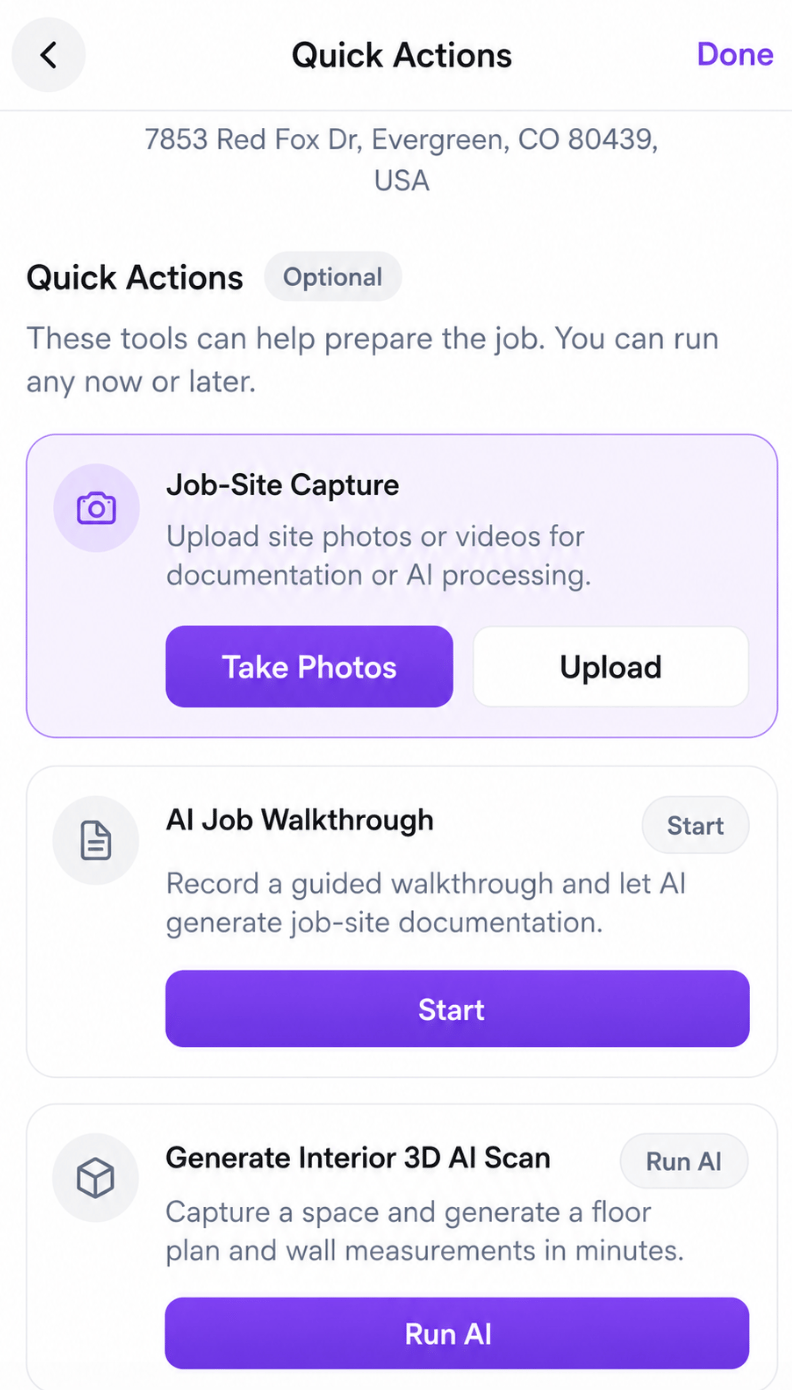
For example, a roofing organization may see roof measurements and report actions, while a flooring organization may see flooring-specific service details such as the ability to do interior 3D scans.
Feldy only displays the fields, features, and quick actions that are relevant to your organization and enabled by your administrator.
## Create a project
To create a project from the Field App:
1. Open the Feldy home screen.
2. Select the purple **plus** button in the lower-right corner.
3. Select **Create Deal** or **Create Project** from the actions menu.
4. Find and confirm the property.
5. Choose the project type.
6. Enable the relevant trade features.
7. Add optional customer and project information.
8. Select **Create project**.
The new project becomes available immediately in both the mobile and web applications.
## Open the actions menu
The purple **plus** button appears in the lower-right corner of the Field App.
Selecting it opens common actions such as:
* Create a project
* Order a measurement report
* Take photos
* Start an AI Job Walkthrough
* Create an AI estimate
The available actions may vary based on the organization’s enabled products and trade configuration.
Select **Create Deal** or **Create Project** to begin creating a new project.
## Find the property
Feldy opens a map to help identify the project location.
You can:
* Search for the property address
* Use the device’s current location
* Move the map to adjust the property pin
* Change the map layer when needed
Before continuing, confirm that the pin identifies the correct structure.
This is especially important for:
* Properties with long driveways
* Multiple buildings
* Rural properties
* Apartment complexes
* New construction
* Commercial sites
* Addresses shared by multiple structures
Select **Confirm** after the correct property has been identified.
## Confirm the project details
After selecting the property, review the project information.
The creation form can include:
* Property address
* Project type
* Enabled trade features
* Customer information
* Project information
### Project type
Choose:
* **Residential**
* **Commercial**
The selected project type can influence the workflows, report options, and trade-specific features available inside the project.
### Enable features
Choose the trade or service features that should be available for the project.
For example:
* Roofing
* Exteriors
* Interior work
* General field services
The available choices depend on the organization’s configuration.
Selecting a trade can add specialized tools to the project after it is created.
## Add customer information
Customer information is optional during initial project creation.
You may add details such as:
* Customer name
* Email address
* Phone number
* Company
* Billing information
Customer information can also be added or updated later.
## Add project information
Project information is also optional.
Depending on the organization, this can include:
* Project name
* Project stage
* Project owner
* Estimated value
* Internal notes
* Service type
* Assigned team members
You can create the project quickly and complete these details later from mobile or web.
## Create the project
After reviewing the property and selected features, select **Create project**.
The project is added to the organization and becomes available to other authorized users.
It can then be opened from:
* Recent Projects
* All Projects
* Search
* The Feldy web platform
# Quick actions after creating a project
After project creation, Feldy may display optional quick actions that help prepare the job.
These actions can be completed immediately or skipped and used later from inside the project.
Different organizations may see different project-creation options based on their trade or property-service vertical.
For example, a roofing organization may see roof measurements and report actions, while a flooring organization may see flooring-specific service details such as the ability to do interior 3D scans.
Feldy only displays the fields, features, and quick actions that are relevant to your organization and enabled by your administrator.
 ## Jobsite Capture
Use **Jobsite Capture** to add photos or other supported media.
You can:
* Take new photos
* Upload existing photos
* Capture exterior conditions
* Document rooms
* Record damage
* Capture product labels
* Document access conditions
* Add supporting media for AI processing
Photos become part of the project and are synchronized with the web platform.
## AI Job Walkthrough
Use **AI Job Walkthrough** to record a guided jobsite walkthrough.
As you move through the property, describe:
* Existing conditions
* Customer requests
* Work that needs to be completed
* Damage or defects
* Installation requirements
* Areas requiring follow-up
Feldy uses the recording and captured images to create an editable project document.
## Trade-specific quick actions
Organizations may receive additional actions based on their trade.
The user only sees features that are enabled for the organization or project.
# Roofing projects
Roofing organizations can receive specialized tools for roof measurement and estimating.
Available actions may include:
## Instant AI 3D Takeoff
The user can generate an initial AI roof model and preliminary roof measurements.
This can provide:
* Roof area
* Roof-facet count
* Pitch information
* Edge measurements
* A 3D roof visualization
* Preliminary measurement data
The Instant AI result is intended for early sales and estimation workflows. Final production quantities should be based on the Certified Report.
## Order a Roof Measurement Report
The user can submit the property for a Certified Roof Measurement Report.
When ordering from inside a project, Feldy can use:
* The project address
* Customer information
* Existing project photos
* Additional field notes
* The selected structures
* The project’s report recipients
Ordering from inside the project keeps the completed measurements and reports connected to the rest of the job.
## Roofing feature availability
When roofing is not enabled, Feldy may display a message explaining that roofing features are available.
An authorized user can select **Enable Roofing** or contact the organization administrator to request access.
Once enabled, roofing actions become available in the project.
# Exterior projects
Exterior-focused organizations may have access to an **Exterior Report** workflow.
Exterior reports can support work involving:
* Siding
* Windows
* Doors
* Trim
* Fascia
* Soffits
* Gutters
* Exterior painting
* Other building-envelope products
Depending on the enabled product, Feldy can use jobsite capture to generate exterior measurements and structured project information.
The available exterior capture and report options depend on the organization’s configuration.
# Interior projects
Interior-trade organizations may have access to **Interior Scan**.
The user moves through the interior with a supported device while Feldy captures room geometry.
The generated result can include:
* A floor plan
* Floor dimensions
* Floor area
* Wall lengths
* Wall measurements
* Room boundaries
* Doors
* Windows
* Openings
Interior scan processing generally takes approximately **2–5 minutes**, depending on the size and complexity of the captured space.
Interior measurements can support workflows such as:
* Flooring
* Painting
* Drywall
* Wall finishes
* Restoration
* Remodeling
Interior Scan availability depends on the organization and supported device.
# General project actions
All organizations can have access to common project tools regardless of trade.
These can include:
* Take photos
* Upload photos
* AI Job Walkthrough
* Create an estimate
* Add documents
* Add comments
* Add customer information
* Assign a project owner
* Update the project stage
* Review project activity
Trade-specific features are added on top of these general project tools.
# Open a project
After creating a project, Feldy opens the project workspace.
The project header can display:
* Project address
* Customer
* Project owner
* Project stage
* Project value
* Favorite status
* Camera access
The available project sections may include:
* Project
* Estimates
* Photos
* Documents
* Measurements
* Reports
* Files
The exact sections depend on the organization’s enabled products.
## Project quick actions
The Project section can display shortcuts such as:
* Create Estimate
* AI Job Walkthrough
* Order Measurement
* AI Measurement
These shortcuts provide faster access to the most common actions for the selected trade.
# Projects with no photos
A newly created project may initially display **No photos yet**.
Select **Add photos** or the camera button to:
* Take new photos
* Upload existing photos
* Start jobsite documentation
* Prepare inputs for AI processing
* Add images before ordering a measurement report
Adding clear jobsite photos early makes the project more useful for estimators, project managers, field teams, and AI workflows.
# Mobile and web synchronization
Projects are synchronized between the Field App and Feldy web platform.
When a user creates a project on mobile, it appears on the web.
When an office user creates a project on the web, it appears in the Field App.
Synchronized project information can include:
* Project address
* Customer information
* Project owner
* Project stage
* Project value
* Photos
* Documents
* Measurements
* Reports
* Estimates
* Comments
* Files
This allows the field and office teams to work from the same project record.
## Example workflow
A typical mobile-to-office workflow might be:
1. A field representative creates the project from the property.
2. The representative takes exterior photos.
3. The representative starts an AI Job Walkthrough.
4. A roofing measurement is ordered.
5. The office team opens the project on the web.
6. The estimator reviews the photos and measurements.
7. The estimate is prepared.
8. The project manager continues using the same project after the work is sold.
No information needs to be manually transferred between mobile and web.
# Feature availability
The actions displayed inside a project depend on:
* Organization type
* Enabled products
* Selected trade
* Project type
* User permissions
* Device capabilities
For example:
| Organization type | Possible project actions |
| :---------------------------- | :-------------------------------------------------- |
| Roofing | Instant AI roof model, roof measurement report |
| Exteriors | Exterior measurement report |
| Interior trades | Interior Scan and floor or wall plan |
| General service organizations | Photos, AI Job Walkthrough, estimates and documents |
An organization administrator may need to enable certain features before users can access them.
# Best practices
When creating a project:
* Confirm the correct property pin.
* Choose the correct residential or commercial type.
* Enable only the relevant trade features.
* Add the customer when the information is available.
* Use a recognizable project name.
* Take jobsite photos early.
* Capture all important work areas.
* Add notes for unusual property conditions.
* Confirm that the project appears on the web before leaving the site when the connection is unreliable.
When working across mobile and web:
* Allow uploads to finish before closing the app.
* Refresh the project if newly added information does not appear immediately.
* Confirm that photos are attached to the correct project.
* Avoid creating duplicate projects for the same job.
* Use one shared project for the complete customer and job history.
## Jobsite Capture
Use **Jobsite Capture** to add photos or other supported media.
You can:
* Take new photos
* Upload existing photos
* Capture exterior conditions
* Document rooms
* Record damage
* Capture product labels
* Document access conditions
* Add supporting media for AI processing
Photos become part of the project and are synchronized with the web platform.
## AI Job Walkthrough
Use **AI Job Walkthrough** to record a guided jobsite walkthrough.
As you move through the property, describe:
* Existing conditions
* Customer requests
* Work that needs to be completed
* Damage or defects
* Installation requirements
* Areas requiring follow-up
Feldy uses the recording and captured images to create an editable project document.
## Trade-specific quick actions
Organizations may receive additional actions based on their trade.
The user only sees features that are enabled for the organization or project.
# Roofing projects
Roofing organizations can receive specialized tools for roof measurement and estimating.
Available actions may include:
## Instant AI 3D Takeoff
The user can generate an initial AI roof model and preliminary roof measurements.
This can provide:
* Roof area
* Roof-facet count
* Pitch information
* Edge measurements
* A 3D roof visualization
* Preliminary measurement data
The Instant AI result is intended for early sales and estimation workflows. Final production quantities should be based on the Certified Report.
## Order a Roof Measurement Report
The user can submit the property for a Certified Roof Measurement Report.
When ordering from inside a project, Feldy can use:
* The project address
* Customer information
* Existing project photos
* Additional field notes
* The selected structures
* The project’s report recipients
Ordering from inside the project keeps the completed measurements and reports connected to the rest of the job.
## Roofing feature availability
When roofing is not enabled, Feldy may display a message explaining that roofing features are available.
An authorized user can select **Enable Roofing** or contact the organization administrator to request access.
Once enabled, roofing actions become available in the project.
# Exterior projects
Exterior-focused organizations may have access to an **Exterior Report** workflow.
Exterior reports can support work involving:
* Siding
* Windows
* Doors
* Trim
* Fascia
* Soffits
* Gutters
* Exterior painting
* Other building-envelope products
Depending on the enabled product, Feldy can use jobsite capture to generate exterior measurements and structured project information.
The available exterior capture and report options depend on the organization’s configuration.
# Interior projects
Interior-trade organizations may have access to **Interior Scan**.
The user moves through the interior with a supported device while Feldy captures room geometry.
The generated result can include:
* A floor plan
* Floor dimensions
* Floor area
* Wall lengths
* Wall measurements
* Room boundaries
* Doors
* Windows
* Openings
Interior scan processing generally takes approximately **2–5 minutes**, depending on the size and complexity of the captured space.
Interior measurements can support workflows such as:
* Flooring
* Painting
* Drywall
* Wall finishes
* Restoration
* Remodeling
Interior Scan availability depends on the organization and supported device.
# General project actions
All organizations can have access to common project tools regardless of trade.
These can include:
* Take photos
* Upload photos
* AI Job Walkthrough
* Create an estimate
* Add documents
* Add comments
* Add customer information
* Assign a project owner
* Update the project stage
* Review project activity
Trade-specific features are added on top of these general project tools.
# Open a project
After creating a project, Feldy opens the project workspace.
The project header can display:
* Project address
* Customer
* Project owner
* Project stage
* Project value
* Favorite status
* Camera access
The available project sections may include:
* Project
* Estimates
* Photos
* Documents
* Measurements
* Reports
* Files
The exact sections depend on the organization’s enabled products.
## Project quick actions
The Project section can display shortcuts such as:
* Create Estimate
* AI Job Walkthrough
* Order Measurement
* AI Measurement
These shortcuts provide faster access to the most common actions for the selected trade.
# Projects with no photos
A newly created project may initially display **No photos yet**.
Select **Add photos** or the camera button to:
* Take new photos
* Upload existing photos
* Start jobsite documentation
* Prepare inputs for AI processing
* Add images before ordering a measurement report
Adding clear jobsite photos early makes the project more useful for estimators, project managers, field teams, and AI workflows.
# Mobile and web synchronization
Projects are synchronized between the Field App and Feldy web platform.
When a user creates a project on mobile, it appears on the web.
When an office user creates a project on the web, it appears in the Field App.
Synchronized project information can include:
* Project address
* Customer information
* Project owner
* Project stage
* Project value
* Photos
* Documents
* Measurements
* Reports
* Estimates
* Comments
* Files
This allows the field and office teams to work from the same project record.
## Example workflow
A typical mobile-to-office workflow might be:
1. A field representative creates the project from the property.
2. The representative takes exterior photos.
3. The representative starts an AI Job Walkthrough.
4. A roofing measurement is ordered.
5. The office team opens the project on the web.
6. The estimator reviews the photos and measurements.
7. The estimate is prepared.
8. The project manager continues using the same project after the work is sold.
No information needs to be manually transferred between mobile and web.
# Feature availability
The actions displayed inside a project depend on:
* Organization type
* Enabled products
* Selected trade
* Project type
* User permissions
* Device capabilities
For example:
| Organization type | Possible project actions |
| :---------------------------- | :-------------------------------------------------- |
| Roofing | Instant AI roof model, roof measurement report |
| Exteriors | Exterior measurement report |
| Interior trades | Interior Scan and floor or wall plan |
| General service organizations | Photos, AI Job Walkthrough, estimates and documents |
An organization administrator may need to enable certain features before users can access them.
# Best practices
When creating a project:
* Confirm the correct property pin.
* Choose the correct residential or commercial type.
* Enable only the relevant trade features.
* Add the customer when the information is available.
* Use a recognizable project name.
* Take jobsite photos early.
* Capture all important work areas.
* Add notes for unusual property conditions.
* Confirm that the project appears on the web before leaving the site when the connection is unreliable.
When working across mobile and web:
* Allow uploads to finish before closing the app.
* Refresh the project if newly added information does not appear immediately.
* Confirm that photos are attached to the correct project.
* Avoid creating duplicate projects for the same job.
* Use one shared project for the complete customer and job history.